NO.24 Challenge 2 -Task 1
In deploying a new application, a cloud customer needs to reflect different security postures. If a security zone is enabled with the Maximum Security Zone recipe, the customer will be unable to create or update a resource in the security zone if the action violates the attached Maximum Security Zone policy.
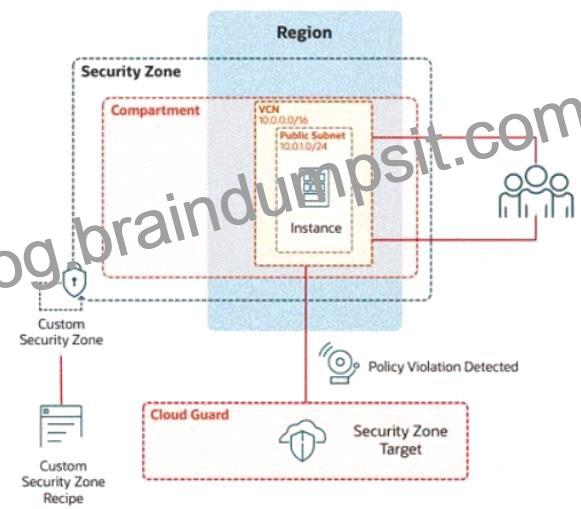
As an application requirement, the customer requires a compute instance in the public subnet. You therefore, need to configure Custom Security Zones that allow the creation of compute instances in the public subnet.
Review the architecture diagram, which outlines the resoures you’ll need to address the requirement:
Preconfigured
To complete this requirement, you are provided with the following:
Access to an OCI tenancy, an assigned compartment, and OCI credentials
Required IAM policies
Task 4: Create a Public Subnet
Create a public subnet named IAD-SP-PBT-PUBSNET-01, within the VCN IAD-SP-PBT-VCN-01 use a CIDR block of 10.0.1.0/24 and configure the subnet to use the internet Gateway See the solution below in Explanation.
To create a public subnet named IAD-SP-PBT-PUBSNET-01 within the VCN IAD-SP-PBT-VCN-01 using a CIDR block of 10.0.1.0/24 and configure it to use the Internet Gateway, follow these steps based on the Oracle Cloud Infrastructure (OCI) Networking documentation.
Step-by-Step Solution for Task 4: Create a Public Subnet
* Log in to the OCI Console:
* Use your OCI credentials to log in to the OCI Console (https://console.us-ashburn-1.oraclecloud.
com).
* Ensure you have access to the assigned compartment.
* Navigate to Virtual Cloud Networks:
* From the OCI Console, click the navigation menu (hamburger icon) on the top left.
* UnderNetworking, selectVirtual Cloud Networks.
* Select the VCN:
* Locate and click on the VCN named IAD-SP-PBT-VCN-01 created in Task 3.
* UnderResources, selectSubnets.
* Create a New Subnet:
* Click theCreate Subnetbutton.
* Configure the Subnet Details:
* Name:Enter IAD-SP-PBT-PUBSNET-01.
* Compartment:Ensure it is set to the assigned compartment.
* Subnet Type:SelectPublic Subnet.
* CIDR Block:Enter 10.0.1.0/24.
* Route Table:Select the default route table associated with the VCN (ensure it includes a route to the Internet Gateway with destination 0.0.0.0/0).
* Subnet Access:SelectPublic Subnetand ensure the Internet Gateway is associated.
* DHCP Options:Leave as default or customize if required.
* Security List:Use the default security list or create a new one with appropriate ingress/egress rules (e.g., allow TCP port 22 for SSH and all egress traffic).
* Associate the Internet Gateway:
* Verify that the subnet is configured to route traffic through the Internet Gateway. This is automatically handled if you selected the public subnet option and the VCN’s route table is correctly set (as configured in Task 3).
* If needed, edit the route table for the subnet to ensure a rule exists:
* Destination CIDR Block:0.0.0.0/0
* Target Type:Internet Gateway
* Target:Select the Internet Gateway associated with IAD-SP-PBT-VCN-01.
* Create the Subnet:
* ClickCreateto provision the subnet.
* Once created, the subnet will be listed under the VCN’s subnets.
* Verify the Configuration:
* Go to the subnet details page for IAD-SP-PBT-PUBSNET-01.
* Confirm the CIDR block is 10.0.1.0/24 and that it is a public subnet with Internet Gateway access.
Notes
* Ensure the CIDR block 10.0.1.0/24 does not overlap with existing subnets in the VCN (10.0.0.0/16, including 10.0.10.0/24 from Task 3).
* The Internet Gateway association relies on the route table configuration from Task 3. If it’s missing, update the route table as described in Step 6.


